ODBC Plug-in
Using the ODBC plug-in, the OPC Router establishes connections between databases and other systems and data sources via an installed ODBC driver. You can read, write, update, and delete data, as well as execute SQL queries and stored procedures. To do this, the OPC Router accesses an ODBC data source that has been previously set up in Windows.
The OPC Router does not include any ODBC drivers.
The user is responsible for providing and performing the configuration of the required ODBC drivers. This applies to both Windows and Docker installations.
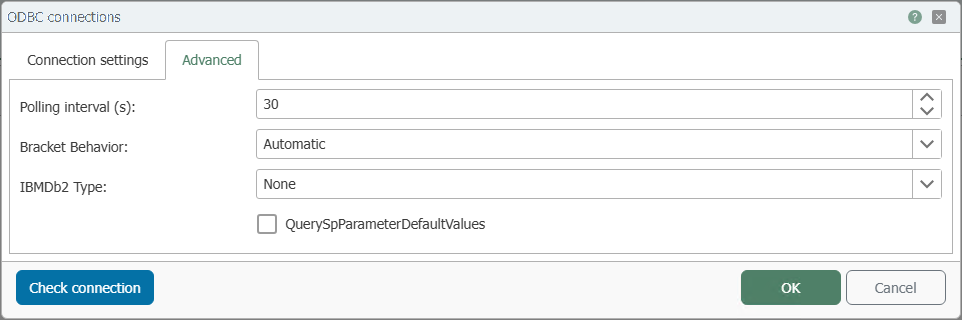
The actual data transfer is implemented using the generic relational transfer objects and triggers. Filter expressions are described at database filter operators, and end-to-end examples at examples and concepts. The parentheses behavior and the polling interval are the same for all relational database plug-ins and are described at Common Connection Settings.
Setting Up an ODBC data source in Windows
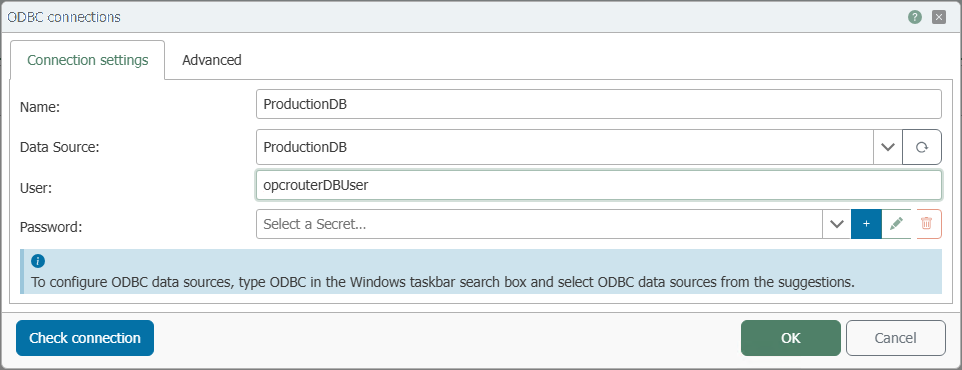
The OPC Router does not manage ODBC data sources itself; instead, it accesses a data source configured in Windows. Therefore, set up the data source first; then select it in the plug-in using the “Data Source” field.
- Install the ODBC driver appropriate for the target system.
- Type “ODBC” into the Windows taskbar search and open ODBC Data Sources (64-bit). Since the OPC Router service is 64-bit, use the 64-bit version; the driver and administrator must have the same bit version.
- On the System DSN tab, click Add to create a new data source. A system DSN applies system-wide and is therefore also accessible to the OPC Router service; a user DSN applies only to the currently logged-in user.
- Select the installed driver, configure the data source (server or instance, database, and login), and assign a unique name.
The data source will then appear under this name in the “Data Source” field of the plug-in. Click the Refresh button next to the field to update the list with newly created data sources.
For the runtime service to use the data source, it must be a system DSN, and the ODBC driver must be installed in the same bit version as the OPC Router (64-bit).
Connection Settings
| Property | Description |
|---|---|
| Name | Any name under which this database server appears in flow configuration. Choose a name that is unique to you during flow configuration. |
| Data Source | An ODBC data source (system DSN) configured in Windows that is used for this connection. Select it from the list; use the Refresh button to retrieve newly configured data sources. For setup instructions, see Setting up an ODBC data source in Windows . |
| User | Username for logging in to the data source. |
| Password | Password for the specified user, stored as a secret. |
Advanced Settings
| Property | Description |
|---|---|
| IBMDb2 Type | Set this if the connected system is a DB2 system. None (default): not IBM DB2. Db2ForLUW: DB2 Linux Unix Windows (LUW). Db2ForI: DB2 for iSeries. |
| QuerySpParameterDefaultValues | If this option is enabled, the OPC Router reads the default values of parameters from stored procedures and saves them for future use. |