License Overview in the License Portal
The license portal provides a comprehensive view of all licenses, their types, versions, and activation status. This overview makes it easier to manage your OPC Router installations and license inventory.
This page describes the overview in the License Portal, which covers all of your licenses. The overview of the license that is active on a single installation is displayed on the License Overview page in OPC Router.

Explanation of the license overview
| Column | Explanation |
|---|---|
| OPC Router ID | Each license is uniquely identified by an OPC Router ID. |
| License Type | The license type specifies whether it is a subscription, perpetual, educational, or another type of license. |
| Version | The Version column indicates the OPC Router version from which the license is valid. |
| Available Activations | Indicates how many activations are still available. In exceptional cases, more activations than were purchased may be permitted, accompanied by a warning and notification to the distributor. Over-provisioning is indicated by a negative value. |
| Subscription/Maintenance Period | For a perpetual license, this shows how many days of support remain. |
| Created | License creation date |
| Valid until | Date on which the license expires |
| License activation | An exclamation mark indicates that manual license activation is required. This is the case for offline systems or when license information has changed in the portal—for example, due to a maintenance extension or the purchase of additional plug-ins. |
Further information
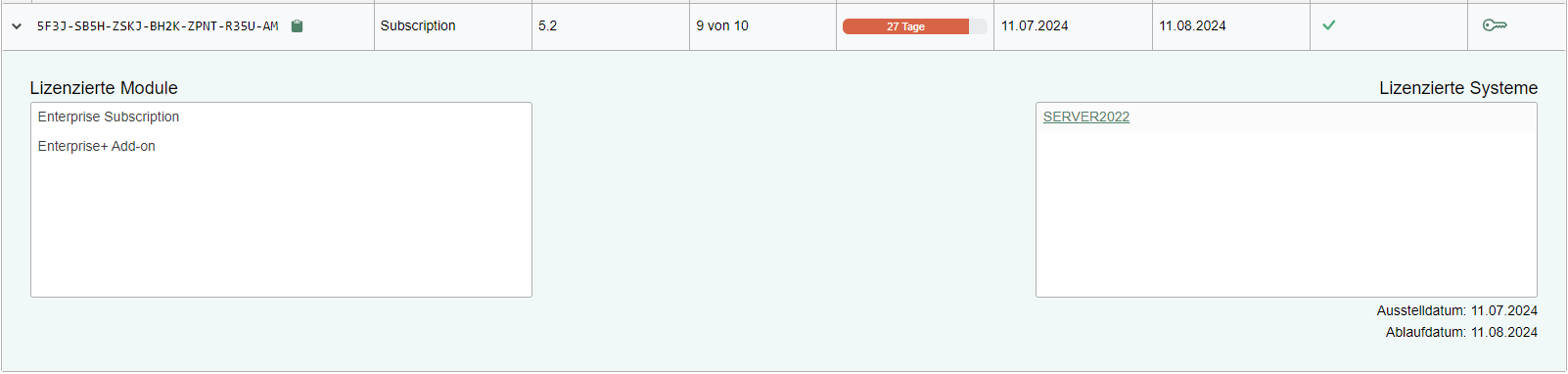
You can expand the rows to view additional information. Once expanded, the license overview displays the licensed modules and the systems on which the license is active.
Activate license (offline licensing)
For systems without a direct Internet connection, the License Portal offers an option for offline licensing. This is enabled by the key button in the “Enable” column. Clicking it initiates the necessary steps to activate a license without online access. On the page “Activate License in OPC Router,” the “Offline Licensing” tab describes the process in more detail. This procedure is particularly useful for secure network environments that do not allow direct Internet access for security reasons.
Adding a license to the portal
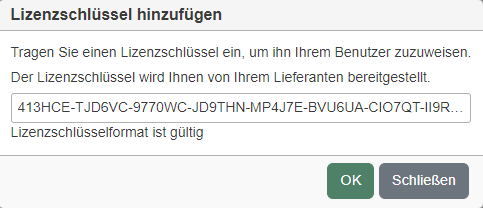
You can add a license to the license portal if you have received a license key from your supplier. To add a license to the license portal, please follow these steps.
- Click the “Add license key” button.
- Enter or paste your license key, then click “OK”.”
After adding it, the license will be displayed in the license overview.
Removing a license from a system
In the license portal, you can use the "Delease system" button to delease a system yourself. The exact procedure is described on the delizenzierung.md page.